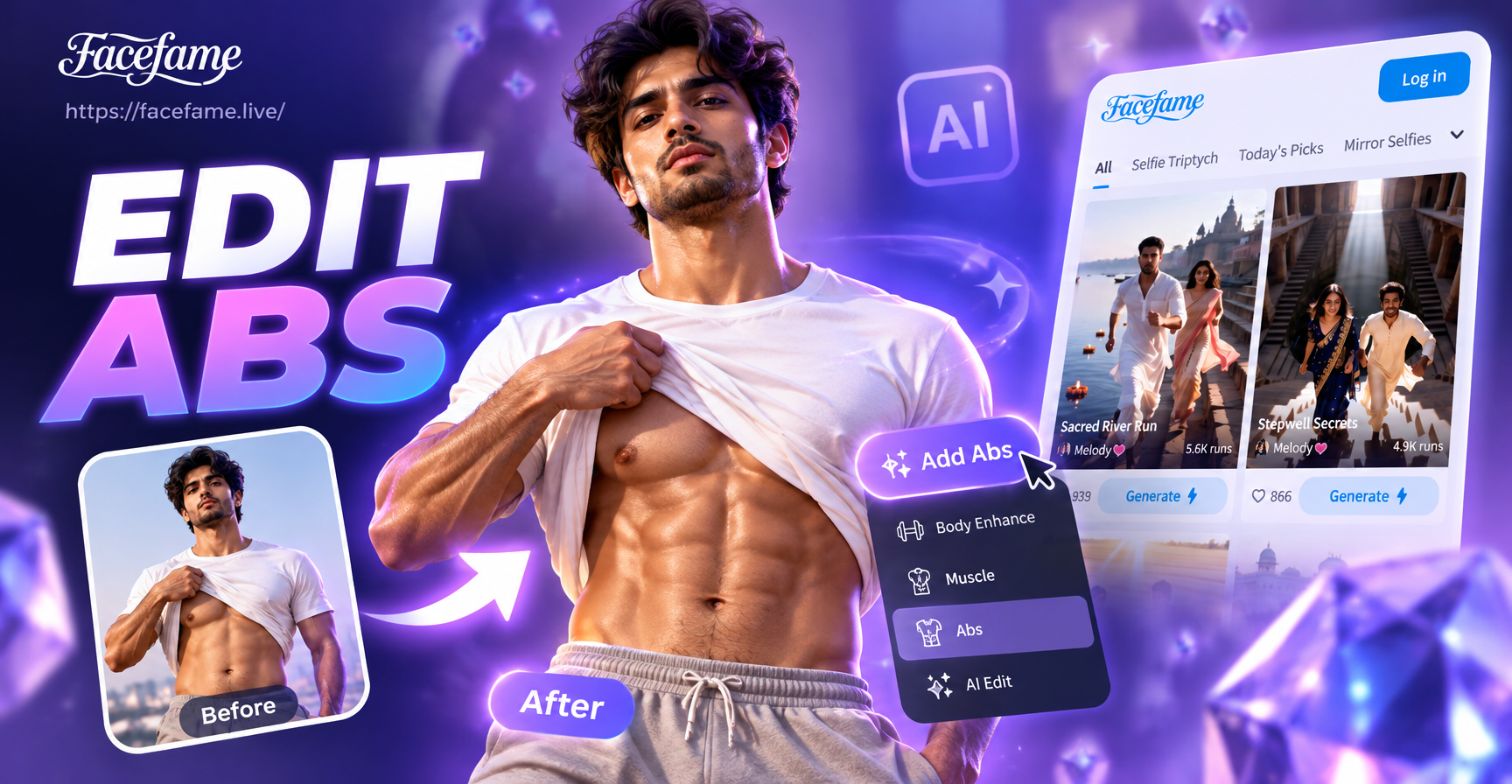
Editing abs onto a photo used to mean hours of Photoshop work, layer masks, and careful blending. Today, artificial intelligence has made the process dramatically simpler. With the right AI app, you can add subtle muscle definition or create a fully chiseled six pack in just a few taps. This guide focuses on how to edit abs on a photo using facefame, a free AI design tool available on Google Play. Whether you want a natural fitness look for a social media post or a fun transformation for a friend, this step-by-step tutorial will show you exactly what to do.
Why Use AI to Edit Abs on a Photo
Traditional photo editing requires manual drawing and shading skills that most people do not have. AI apps like facefame remove that barrier by understanding the context of your image and applying realistic transformations automatically. Instead of painting individual abdominal muscles, you apply a style or effect that the AI has learned from thousands of fitness images. The result is a coherent, natural looking change that matches your body shape and lighting. This makes abs editing accessible to anyone, even if you have never edited a photo before.
What You Need Before You Start
Before you begin, gather a suitable source photo. The quality of the original image directly affects the final result. Look for a picture where your torso is clearly visible, preferably with moderate lighting and minimal clothing covering the midsection. A front facing, well lit selfie or full body shot works best. Avoid photos with heavy shadows across the stomach, extreme angles, or baggy clothing that hides the abdominal area. The AI needs enough visual information to understand your body contours and apply the abs effect convincingly. Also make sure you have a stable internet connection, because facefame processes images on its servers and uploads your photo for transformation.
Step-by-Step Guide to Edit Abs on a Photo with facefame
Step 1: Download and Install facefame
Open the Google Play Store on your Android device and search for facefame. The app is free to download and install. Once installed, open the app and complete the quick onboarding process. No account creation is required for basic use, although signing in may give you access to saved projects and higher resolution exports. The interface is designed for simplicity, so you will not need any prior design experience.
Step 2: Choose the Right Source Photo
Select a photo from your gallery that shows your upper body or full torso. A picture taken in natural daylight often produces the most realistic results. If you do not have a suitable photo, take a new one using your phone camera. Stand facing the light, relax your stomach, and keep your arms slightly away from your body so the abdominal area is unobstructed. Avoid wearing a shirt if possible, or wear a tight fitting tank top so the AI can detect your body shape accurately.
Step 3: Open the App and Import Your Photo
Launch facefame and tap the main upload button. Choose the photo you prepared from your device gallery. The app will load the image and display it in the editing workspace. From here, you can either apply a general style transfer or use the image to image feature for more specific adjustments. For abs editing, the most effective method is to browse the style filter library and look for categories related to fitness, muscle, or athletic physique.
Step 4: Select a Fitness or Muscle Style Filter
facefame includes a large collection of style templates. Many of these templates are designed to enhance physical features such as muscle tone, vascularity, and abdominal definition. Scroll through the fitness or body related categories and preview each filter on your photo. Some filters apply a subtle enhancement that slightly sharpens existing abs, while others may completely restructure the torso with a more dramatic six pack. Choose a filter that looks natural relative to your original body type. A very lean filter on a larger body may appear unrealistic, so pick one that matches your frame.
Step 5: Adjust the Intensity and Preview
Once you select a filter, facefame processes the image and shows you a preview. Depending on the app version, you may have an intensity slider or adjustment options. If available, reduce the intensity to around 50 to 70 percent to keep the abs looking authentic rather than overprocessed. Zoom in on the abdominal area to check that the muscle lines align with your natural body. If the filter distorts the surrounding skin or creates odd shadows, try a different style or back up and adjust the source photo crop.
Step 6: Generate and Download
When you are satisfied with the preview, tap the generate button to render the final high resolution image. Wait a few seconds while the AI completes the transformation. After processing, review the result at full size. If it looks good, tap the download icon to save the edited photo to your device. You can now share it on Instagram, TikTok, or with friends directly from the app. If you are not happy, go back, change the filter, or upload a different source photo and try again.
Tips for Realistic Abs Editing
Achieving a believable result depends on several factors. First, match the filter intensity to your existing physique. Adding extreme abs to a photo of someone who is clearly not athletic will look fake. Second, pay attention to lighting direction. The AI generated abs should follow the same light source as the rest of the photo. Third, avoid editing only the stomach area if the rest of the body remains unchanged. A noticeably defined midsection on an otherwise soft body can look disjointed. For a more cohesive result, consider using a filter that enhances overall muscle tone, not just abs. Finally, always export at the highest quality available to preserve detail.
Common Mistakes to Avoid
One frequent error is using a low resolution or heavily compressed photo. Blurry source images produce blurry abs. Another mistake is applying a filter to a photo where the torso is partially hidden by clothing or arms. The AI may misinterpret the clothing as skin and generate distorted shapes. Also avoid editing photos that are backlit or have harsh shadows across the abdomen, because the AI will struggle to place the muscles correctly. Finally, do not overdo the effect. Less is often more when it comes to realistic abs editing. If the result looks like a cartoon, reduce the intensity or choose a subtler filter.
Alternatives if You Want More Control
If facefame's automatic filters do not give you the exact look you want, you can still use the app's image to image feature as a starting point. Upload your photo, then apply a light style transfer that adds overall muscle definition. After that, use a separate photo editing app on your phone to fine tune contrast and sharpness around the abdominal area. Combining facefame's AI output with basic manual adjustments can yield a very natural final image. You can also experiment with different source photos of the same person to see which one responds best to the abs filter.
Conclusion
Learning how to edit abs on a photo has never been easier. With facefame, you can transform a regular picture into a fitness inspired image in under a minute. The key is to start with a good source photo, choose an appropriate muscle style filter, and adjust the intensity for realism. Download facefame from Google Play today and give your photos a powerful, athletic upgrade without any professional editing skills.