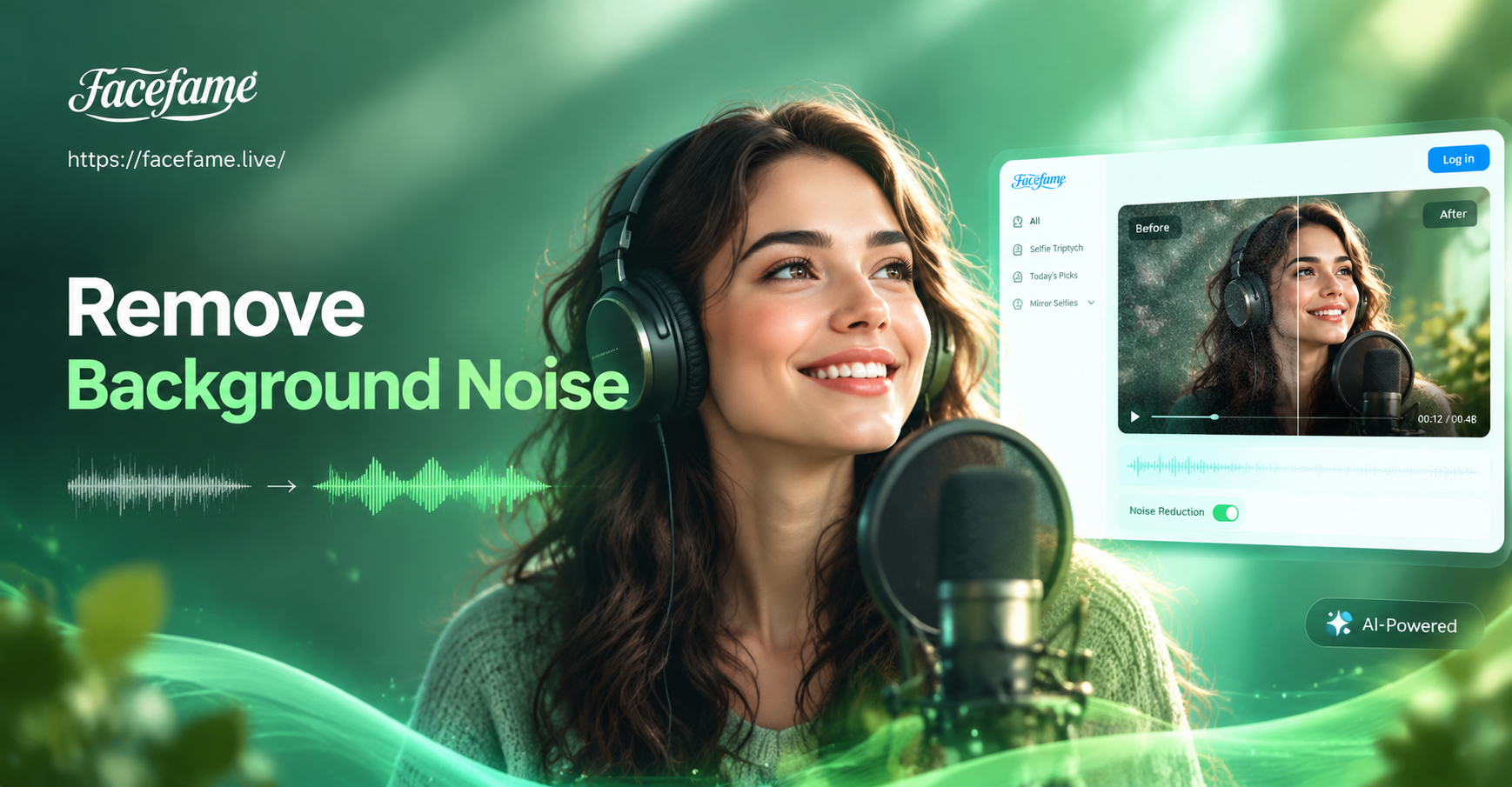
Background noise can turn a good video into a frustrating watch. Whether it is a humming air conditioner, street traffic, or an echo in a room, unwanted sound distracts viewers and makes your content feel unprofessional. In this guide, you will learn practical methods to remove background noise from a video using free and paid tools, plus tips to prevent noise during recording.
Understanding Background Noise in Videos
Background noise is any unwanted sound that is not part of your intended audio. It can be constant like a fan or air conditioner, intermittent like a dog barking or passing car, or environmental like room echo and reverb. Removing it improves clarity, keeps viewer attention, and makes your video easier to understand. The right method depends on the type of noise, the quality of the original recording, and the tools you have available.
Common Types of Background Noise
- Broadband noise: Constant hiss, hum, or static produced by electronics, HVAC systems, or low quality microphones.
- Impulsive noise: Sudden sounds like clicks, pops, keyboard taps, or door slams.
- Environmental noise: Traffic, wind, crowd chatter, or nature sounds picked up during recording.
- Reverberation and echo: The reflection of your voice off hard surfaces in a room, making audio sound distant or hollow.
Method 1: Use AI Powered Noise Reduction Software
AI powered tools have made removing background noise from a video much easier. They analyze your audio, identify the noise profile, and separate the human voice from unwanted sound automatically. Many of these tools work directly in your browser or as desktop applications.
Step by Step Guide with an AI Noise Reduction Tool
- Upload your video or audio file. Most AI tools accept MP4, MOV, WAV, or MP3 formats.
- Select the noise reduction feature. Look for options like "Remove Background Noise," "Enhance Speech," or "Clean Audio."
- Let the AI process the audio. The tool will analyze the sound and automatically reduce or eliminate the background noise while preserving your voice.
- Preview and adjust intensity. Some tools let you control how aggressive the noise removal is. Start with a moderate setting and increase if needed.
- Export the cleaned video or audio. Save the result in your desired format and replace the original track in your video editor.
Popular AI noise reduction tools include Adobe Podcast, Descript, and Krisp. They are particularly effective for constant broadband noise and can often clean a recording in under a minute.
Method 2: Manual Noise Removal in an Audio Editor
If you prefer a free and hands on approach, a dedicated audio editor like Audacity gives you full control. Manual noise removal works best for steady, consistent background noise.
Using Audacity to Remove Noise
- Import your video audio into Audacity. You can extract the audio from your video using a video editor first, or use Audacity with a plugin like FFmpeg to import video directly.
- Select a portion of the audio that contains only the background noise. This is your noise profile. It should be at least a few seconds long and have no speech.
- Go to Effect and choose Noise Reduction. Click "Get Noise Profile." Audacity will analyze the selected noise.
- Select the entire audio track. Then go back to Effect, Noise Reduction, and click "OK" to apply the reduction.
- Adjust the settings. You can change the noise reduction strength, sensitivity, and frequency smoothing for better results.
- Export the cleaned audio. Replace the original audio track in your video editor.
Manual noise removal works well for constant hums and hisses but can sometimes leave artifacts or affect the voice quality. Always preview the result and undo if it sounds unnatural.
Method 3: Quick Fixes with Mobile Apps
Many mobile video editors now include built in noise reduction features. These are perfect for quick edits on your phone without needing a computer.
Using a Mobile App to Clean Video Audio
- Import your video into a mobile editing app. Apps like CapCut, InShot, and Adobe Premiere Rush offer noise reduction tools.
- Find the audio cleanup option. Look for "Noise Reduction," "Denoise," or "Enhance Voice" in the audio settings.
- Apply the effect. Adjust the strength slider until the background noise is reduced but your voice remains clear.
- Export the video. Save the cleaned video directly to your phone or share it on social media.
Mobile apps are convenient but may not offer the same level of control as dedicated desktop tools. They work best for mild to moderate background noise.
Method 4: Prevent Background Noise During Recording
The best way to remove background noise from a video is to avoid recording it in the first place. A few simple changes can dramatically improve your raw audio quality.
- Use an external microphone. A lavalier, shotgun, or USB condenser mic captures cleaner sound than a built in camera or phone microphone.
- Record in a quiet space. Turn off fans, air conditioners, and other appliances. Close windows to reduce traffic and wind noise.
- Add soft furnishings. Rugs, curtains, and cushions absorb sound reflections and reduce echo.
- Monitor your audio. Wear headphones while recording to hear exactly what the microphone picks up.
- Record a noise profile. Capture 10 seconds of silence at the beginning of your recording for easy noise removal later.
Enhanced Visuals with facefame
While you focus on cleaning up your audio, facefame can help you take care of the visual side of your video. facefame is an all in one AI design tool that generates and edits images and videos with over one million style filters. You can turn static photos into dynamic videos, apply trending effects like AI Hug or Old Photo Revival, and create multi person interactions. Keep in mind that facefame specializes in visual content, so for background noise removal you should combine it with a dedicated audio tool. Together, they give you a polished final product: clean audio and stunning visuals.
Tips for Better Audio Quality
- Normalize loudness. After removing noise, normalize the audio to a consistent level, usually around -16 LUFS for online video.
- Use a noise gate. A noise gate automatically mutes the audio when the signal falls below a certain threshold, helpful for quiet pauses.
- Apply EQ subtlety. A gentle high pass filter at 80 to 120 Hz removes low rumble without hurting voice warmth.
- Always keep a backup. Work on a copy of your original audio so you can revert if the results sound unnatural.
Frequently Asked Questions
Can I remove background noise from a video for free?
Yes. Audacity is a free open source audio editor that offers robust manual noise reduction. Some mobile apps like CapCut also have free noise reduction features. AI tools such as Adobe Podcast have free tiers with limitations.
What is the best AI tool to remove background noise from a video?
The best tool depends on your needs. Adobe Podcast and Descript are excellent for automated voice cleanup. Krisp is great for live noise suppression during recordings. For quick social media edits, CapCut and InShot are convenient mobile options.
How do I remove background noise without affecting the voice?
Start with a moderate noise reduction strength and gradually increase it while listening to the voice. Avoid aggressive settings that make speech sound robotic or watery. Using a noise profile captured from a silent section of the same recording also helps preserve natural voice quality.
Can facefame remove background noise from a video?
No, facefame is designed for visual content generation and editing. It does not have audio processing capabilities. For background noise removal, use a dedicated audio tool as described above, and then use facefame to enhance or create the visual elements of your video.
Conclusion
Removing background noise from a video is easier than ever thanks to AI tools and free audio editors. Whether you choose an automated AI solution, manual editing in Audacity, or a quick mobile app fix, the key is to match the method to the type of noise and your workflow. For the best results, combine clean audio with compelling visuals. Once your audio is sorted, explore facefame to generate or style your video content with AI, and deliver a final product that keeps viewers engaged.