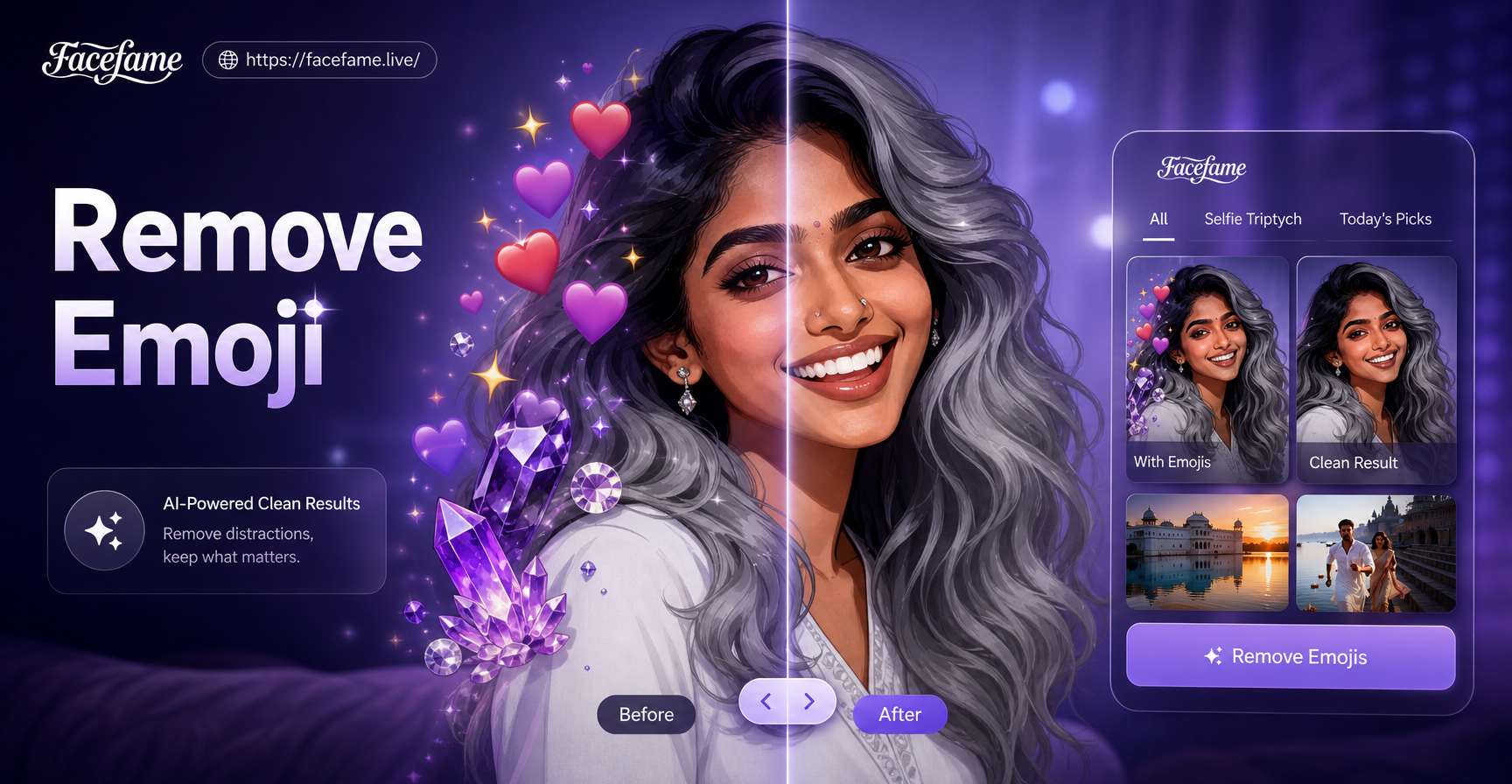
Emojis are fun in messages, but when they appear on a photo you want to keep, they can be a real nuisance. Maybe you accidentally left an emoji sticker on a group shot, or a friend added a laughing face to your profile picture. Whatever the case, knowing how to remove emoji in picture is a useful skill.
This guide covers practical methods for removing emojis from any image. You will learn how to use AI-powered mobile apps like FaceFame, manual photo editing software, and quick online tools. We will also share tips for getting clean, natural results without damaging the original photo.
Why Remove Emojis from Pictures?
There are many reasons to remove an emoji from a picture. Perhaps it covers a face or an important object. Maybe you want to use the photo for a professional profile, a printed gift, or a social media post where the emoji looks out of place. Emojis can also be added by mistake in editing apps, or they might be part of a watermark you need to erase.
Removing an emoji is different from simply cropping it out. Cropping often cuts away parts of the photo you want to keep. A good removal method rebuilds the pixels behind the emoji so the area looks natural. That is what the following methods aim to do.
Method 1: Use FaceFame's AI Image Editing
FaceFame is an all-in-one AI design tool available as a mobile app. It is known for its massive library of style filters and simple interface, but it can also help you clean up photos. While FaceFame does not have a button labeled "remove emoji", its image-to-image AI can repaint the area occupied by an emoji with new content based on your text prompt.
Here is how to use FaceFame to remove an emoji from a picture:
- Download the FaceFame app from Google Play and open it.
- Upload the photo that contains the emoji you want to remove.
- Choose the image-to-image feature and select a style template that matches your photo, such as realistic photo retouch or natural cleanup.
- Describe the area to fix. For example, you can type "remove the emoji and replace it with the background texture" or "clean the face area and remove the sticker".
- Generate the result. The AI will produce a new version of your photo with the emoji area filled in naturally. You can repeat the process with different prompts if the first result is not perfect.
Because FaceFame lets you preview and regenerate quickly, it is a fast, beginner-friendly option. It works especially well when the emoji covers a small to medium area and the background behind it is relatively simple. If the emoji covers a complex part of the photo, you may need to combine FaceFame with manual touch-ups in another app.
Method 2: Manual Removal with Photo Editing Apps
For precise control, manual editing tools are hard to beat. Apps like Snapseed, TouchRetouch, or desktop software such as Adobe Photoshop offer healing brushes and clone stamps that let you remove an emoji pixel by pixel.
Using Snapseed (Free Mobile App)
Snapseed has a Healing tool that is perfect for small emojis.
- Open the photo in Snapseed.
- Tap Tools and select Healing.
- Zoom in on the emoji and simply brush over it with your finger.
- Snapseed will automatically blend the surrounding pixels to cover the emoji.
This works best on flat backgrounds like skin, walls, or sky. For busy backgrounds, the healing tool may smear details, so you may need to use the clone stamp in another app.
Using TouchRetouch
TouchRetouch is a dedicated object removal app. It offers a lasso tool and a brush tool. Select the emoji with the lasso, then tap Erase. The app fills the selection with surrounding textures. You can also use the clone stamp to manually copy a clean area over the emoji.
Using Photoshop
In Photoshop, use the Spot Healing Brush for small emojis or the Clone Stamp for larger ones. The clone stamp gives you full control: hold Alt (or Option on Mac) to sample a clean area, then paint over the emoji. Always sample from a nearby area that matches the lighting and texture.
Method 3: Online AI Emoji Removers
Several websites offer free AI-based object removal. These tools work directly in your browser and require no installation. They are convenient for one-off fixes.
Typical steps for online AI removers:
- Upload the picture.
- Use a brush to mark the emoji.
- Click Remove or Erase.
- Download the cleaned image.
Popular options include Cleanup.pictures, Fotor's object remover, and Inpaint. These tools are generally safe for personal photos, but be cautious about uploading sensitive images to unknown websites. Always check the privacy policy if you are concerned about data security.
Online AI removers work best for small, simple emojis on uniform backgrounds. If the emoji overlaps a face or detailed clothing, the AI may produce blurry or distorted results. In that case, a more advanced tool like FaceFame or manual editing may be necessary.
Method 4: Recreate the Photo with an AI Image Generator
If the emoji covers a large portion of the photo or the background is too complex for simple removal, you might consider regenerating the entire image. FaceFame's text-to-image feature can create a new version of your photo based on a description. This is not a direct emoji removal method, but it can give you a clean alternative without the emoji.
For example, if you have a picture of a person with an emoji over their face, you can use FaceFame to generate a new portrait that resembles the original person (using the image-to-image mode) while instructing the AI to omit the emoji. The result may not be pixel-perfect, but it often looks natural and can be further edited manually.
This method is best when you need a fresh, high-quality image and are willing to accept slight differences from the original. It is also useful when the emoji is part of a larger design you want to completely replace.
Step-by-Step Tutorial: Removing Emoji with FaceFame
Let us walk through a realistic example. Suppose you have a selfie with a yellow emoji covering your cheek. You want to remove the emoji and restore your natural skin.
Step 1: Install FaceFame
Go to Google Play and search for FaceFame. Download and install the app on your Android device. Open the app and sign up or continue as a guest.
Step 2: Upload Your Photo
Tap the Create button and choose the option to upload an image from your gallery. Select the photo with the emoji.
Step 3: Choose Image-to-Image
FaceFame offers several creative modes. Select Image-to-Image. You will see a preview of your photo and a text box.
Step 4: Write a Clear Prompt
In the text box, type something like: "Remove the yellow emoji on the cheek. Replace it with smooth natural skin that matches the surrounding area. Keep the rest of the photo unchanged." The more specific you are, the better the AI understands what you want.
Step 5: Generate and Review
Tap Generate. Wait a few seconds for the AI to process. Review the result. If the emoji is still visible or the skin looks unnatural, adjust your prompt. For example, you could write: "Erase the emoji completely. Reconstruct the cheek using the same skin tone and lighting as the rest of the face."
Step 6: Download the Final Image
Once you are satisfied, save the image to your device. You can now use the clean photo anywhere.
This process usually takes less than a minute and requires no design skills. FaceFame's AI does the heavy lifting, making it an excellent choice for beginners who need quick results.
Tips for Best Results When Removing Emojis
- Work on a high-resolution copy. The more pixels the AI or healing tool has to work with, the more natural the result will be.
- Zoom in when selecting the emoji. Precise selection prevents accidentally removing important parts of the photo.
- Match textures and lighting. If you use a clone stamp, sample from an area that has the same brightness and color as the emoji's surroundings.
- Try multiple methods. Sometimes a combination works best. For example, use FaceFame for the initial removal, then clean up small imperfections with Snapseed.
- Be patient with complex backgrounds. If the emoji sits on a patterned shirt or a busy street, manual cloning may be the only way to get a perfect result.
Common Mistakes to Avoid
- Using a healing brush on a face. The healing tool can distort facial features. Pause and use a clone stamp or an AI tool that understands facial structure.
- Overusing blur. Some apps blur the removed area to hide the emoji. This looks unnatural and draws attention to the edit. Always aim for sharp, seamless reconstruction.
- Uploading private photos to unknown online tools. Read the privacy policy first. For sensitive images, stick to offline editing apps like FaceFame or Photoshop.
- Expecting AI to be 100% perfect. AI removal is powerful, but it may leave slight artifacts. Always review the result at full size and do minor manual fixes if needed.
When to Use AI vs Manual Editing
AI tools like FaceFame are fastest for small to medium emojis on simple backgrounds. They are also great when you want to recreate parts of the photo or improve overall quality while removing the emoji.
Manual editing is better when precision matters more than speed. If the emoji sits on a face, a logo, or a highly detailed area, Photoshop's clone stamp or a dedicated retouch app gives you pixel-level control. Manual editing also works offline, which is important for privacy.
For the best of both worlds, start with an AI tool to do the heavy lifting, then open the result in a manual editor for final touch-ups.
Can You Remove an Emoji from a Video?
Removing emojis from videos is more challenging because it requires frame-by-frame cleanup or AI video inpainting. FaceFame offers AI video generation features, but direct video object removal is not its primary use case. If you need to remove an emoji from a video, consider using a dedicated video editing app like CapCut or Adobe After Effects with a content-aware fill tool. For simple cases, you can extract a still frame, remove the emoji using the methods above, and overlay the cleaned frame on the video for a short segment. However, this is advanced and often imperfect.
Conclusion
Removing an emoji from a picture is easier than you might think. Whether you use an AI-powered app like FaceFame, a manual editing tool, or an online remover, you can restore your photo in minutes. The key is to choose the method that matches the complexity of the image and your comfort level with editing software.
For most people, FaceFame offers the simplest path: upload the photo, type a short prompt, and let the AI reconstruct the area. You do not need any design skills. And because FaceFame is free to download and includes thousands of creative filters, you can also use it to enhance the photo after removing the emoji. Download FaceFame today from Google Play and see how easy photo cleanup can be.